

The nav rail
A left rail holds every view: Home, Resources, Issues, Topology, Applications, Timeline, Traffic, Helm, GitOps, Checks, and Cost. Pin it open to see labels, or collapse it to a slim icon rail to reclaim horizontal space.- Jump by keyboard with a
g-mnemonic -g hHome,g rResources,g iIssues,g tTopology,g aApplications, and so on. The full set is in the keyboard shortcuts reference. - Settings and your account sit at the bottom of the rail; help (
?) and report-a-bug are top-right.
The Checks entry contains Best practices and Upgrade impact. The old
/audit path still resolves to Best practices.The omnibar
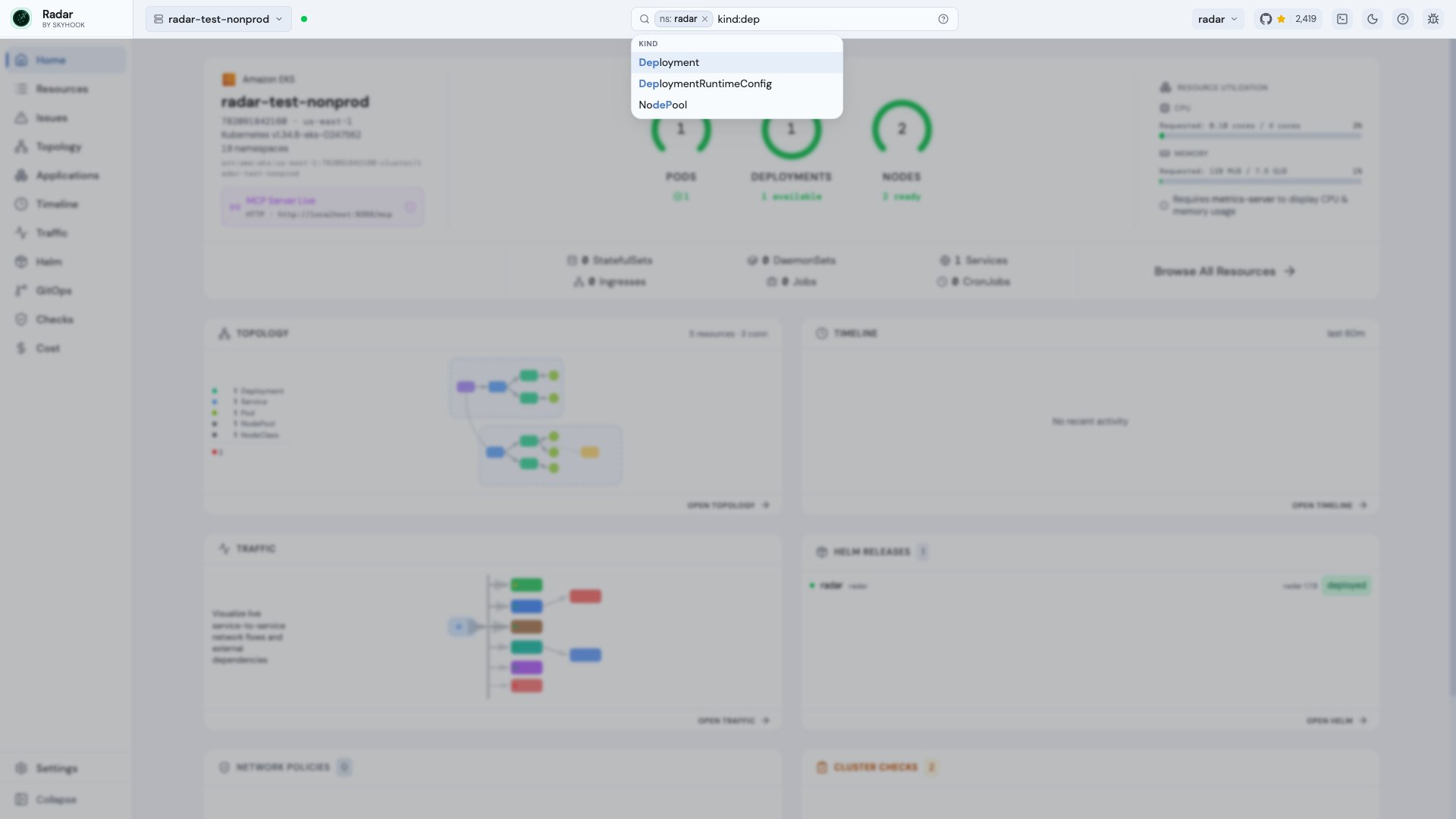
Press⌘K (Ctrl+K) to open the omnibar. Unlike the per-view search box (/), which filters the list you’re already looking at, the omnibar searches the whole cluster - every kind Radar caches - and is always bounded by your RBAC, so it never surfaces something you can’t read.
Results are ranked, autocompleted as you type, and your recent picks are remembered so the things you look at often stay one keystroke away.
Filter pills
Narrow a search with structured filters instead of guessing at substrings. Type a prefix and the omnibar turns it into a pill:
Combine pills to scope tightly -
kind:pod ns:prod label:app=api lands on exactly the pods you mean.
In Radar Cloud
The omnibar searches across the whole fleet, labeling each result with the cluster it lives in, and a global scope filter narrows any view to the clusters, environments, or namespaces you care about. See Fleet views.See also
- Keyboard shortcuts - every keybinding, including the
g-mnemonics. - Resource browser - the per-view search and filtering.